Containerization-and-DevOps
Deploying NGINX Using Different Base Images and Comparing Image Layers
Lab Objectives
After completing this lab, students will be able to:
-
Deploy NGINX using:
- Official
nginximage - Ubuntu-based image
- Alpine-based image
- Official
- Understand Docker image layers and size differences
- Compare performance, security, and use-cases of each approach
- Explain real-world use of NGINX in containerized systems
Prerequisites
- Docker installed and running
-
Basic knowledge of:
docker runDockerfile- Port mapping
- Linux command basics
Part 1: Deploy NGINX Using Official Image (Recommended Approach)
Step 1: Pull the Image
docker pull nginx:latest
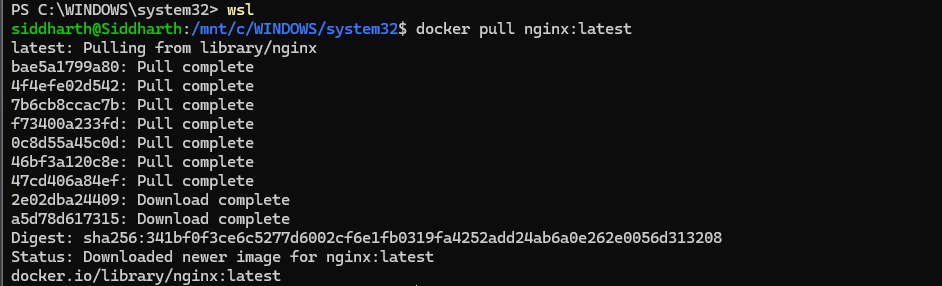
Step 2: Run the Container
docker run -d --name nginx-official -p 8080:80 nginx
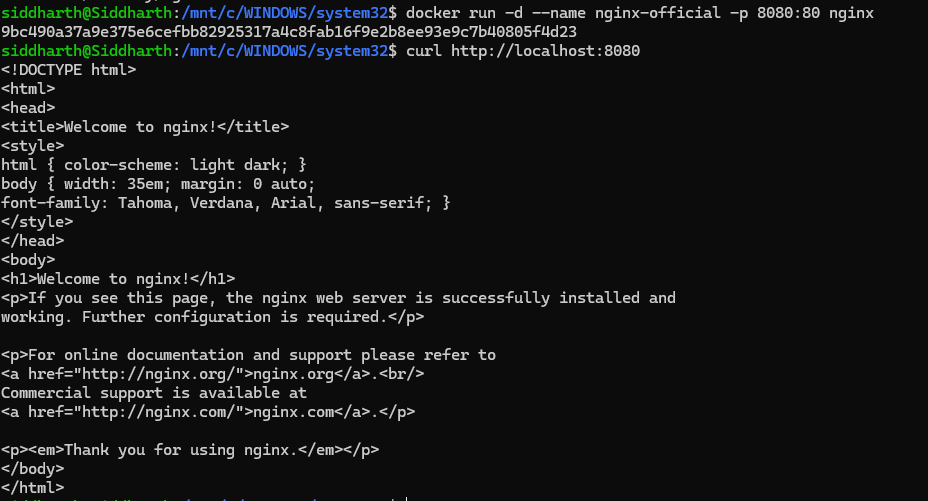
Step 3: Verify
curl http://localhost:8080

You should see the NGINX welcome page.
Key Observations
docker images nginx

- Image is pre-optimized
- Minimal configuration required
- Uses Debian-based OS internally
Part 2: Custom NGINX Using Ubuntu Base Image
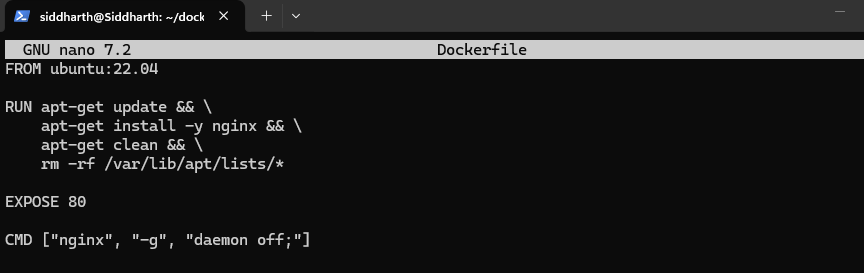
Step 1: Create Dockerfile

FROM ubuntu:22.04

RUN apt-get update && \
    apt-get install -y nginx && \
    apt-get clean && \
    rm -rf /var/lib/apt/lists/*

EXPOSE 80

CMD ["nginx", "-g", "daemon off;"]
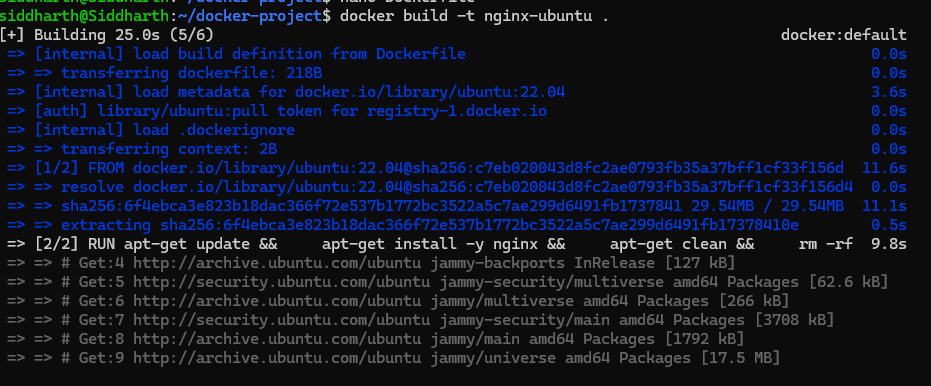
Step 2: Build Image
docker build -t nginx-ubuntu .
Step 3: Run Container
docker run -d --name nginx-ubuntu -p 8081:80 nginx-ubuntu
 —
—
Observations
docker images nginx-ubuntu

- Much larger image size
- More layers
- Full OS utilities available
Part 3: Custom NGINX Using Alpine Base Image
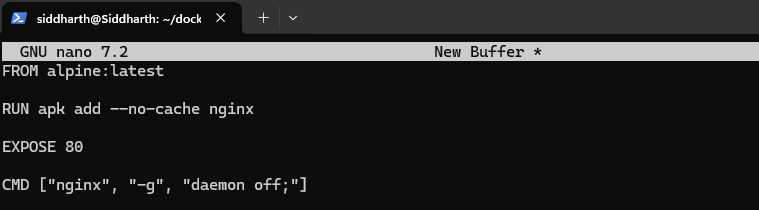
Step 1: Create Dockerfile

FROM alpine:latest

RUN apk add --no-cache nginx

EXPOSE 80

CMD ["nginx", "-g", "daemon off;"]
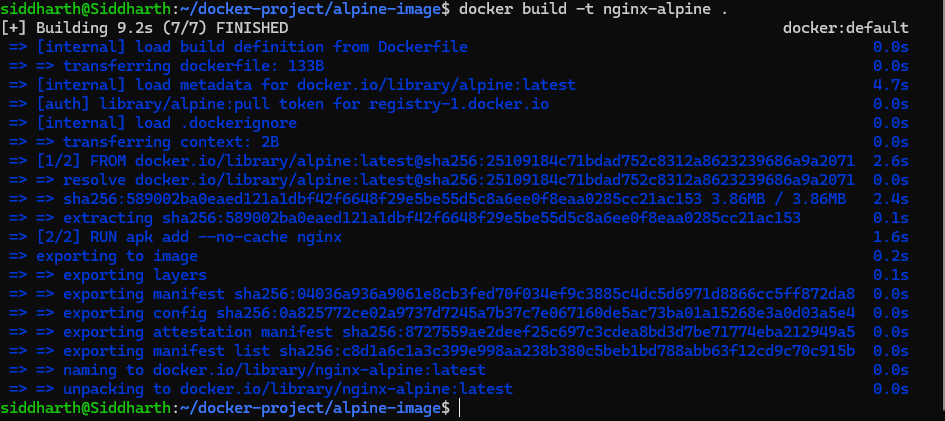
Step 2: Build Image
docker build -t nginx-alpine .
Step 3: Run Container
docker run -d --name nginx-alpine -p 8082:80 nginx-alpine

Observations
docker images nginx-alpine

- Extremely small image
- Fewer packages
- Faster pull and startup time
Part 4: Image Size and Layer Comparison
Compare Sizes
docker images | grep nginx

Typical result (approx):
| Image Type | Size |
|---|---|
| nginx:latest | ~140 MB |
| nginx-ubuntu | ~220+ MB |
| nginx-alpine | ~25–30 MB |
Observations:
- Ubuntu has many filesystem layers
- Alpine has minimal layers
- Official NGINX image is optimized but heavier than Alpine
Part 5: Functional Tasks Using NGINX
Task 1: Serve Custom HTML Page
mkdir html
echo "<h1>Hello from Docker NGINX</h1>" > html/index.html

Run:
docker run -d \
  -p 8083:80 \
  -v $(pwd)/html:/usr/share/nginx/html \
  nginx
